What Is a NAS Drive Used For? Everything You Need to Know Before You Buy
My photo library blew past 2TB the hard way — one drive failure on an external USB disk, and several years of raw files were gone. I had backups, sort of, but they were scattered across three different drives with no structure and no guarantee any of them were current. A friend who had been recommending a NAS for years finally got me to listen. That was three enclosures ago. Now I run a 4-bay setup in my home office, and the idea of going back to juggling USB drives feels genuinely absurd.
A NAS — Network Attached Storage — is not a complicated concept, but it gets oversold by spec sheets and undersold by people who assume it’s only for IT departments. It isn’t. A reasonably priced 2-bay NAS with a pair of well-chosen drives will transform how your whole household stores, shares, and protects files. The question “what is a NAS drive used for?” sounds simple, but the real answer covers everything from streaming 4K video to your TV, to giving a small business team shared file access without paying monthly cloud fees forever.
This guide covers what NAS drives actually do, how to pick the right one, what separates a genuine NAS-rated drive from a desktop drive that will fail in six months, and which specific drives are worth your money right now.
Quick Comparison: Top NAS Drives at a Glance
| Drive | Capacity Shown | Recording Type | Workload Rating | Max Bay Support | Warranty | Best For |
|---|---|---|---|---|---|---|
| Seagate IronWolf 4TB | 4TB | CMR | 180 TB/yr | Up to 8 bays | 3 years + Rescue | Home & SOHO NAS |
| WD Red Plus 4TB | 4TB | CMR | 180 TB/yr | Up to 8 bays | 3 years | Home & SOHO NAS |
| Seagate IronWolf 8TB | 8TB | CMR | 180 TB/yr | Up to 8 bays | 5 years + Rescue | Media collectors, families |
| Desktop HDD (generic) | Varies | CMR or SMR | 55 TB/yr | 1 bay (not recommended) | 2 years | Single PC, not NAS |
| Seagate IronWolf Pro 4TB | 4TB | CMR | 300 TB/yr | Up to 24 bays | 5 years + Rescue | Small business, heavy use |
What Exactly Is a NAS Drive?
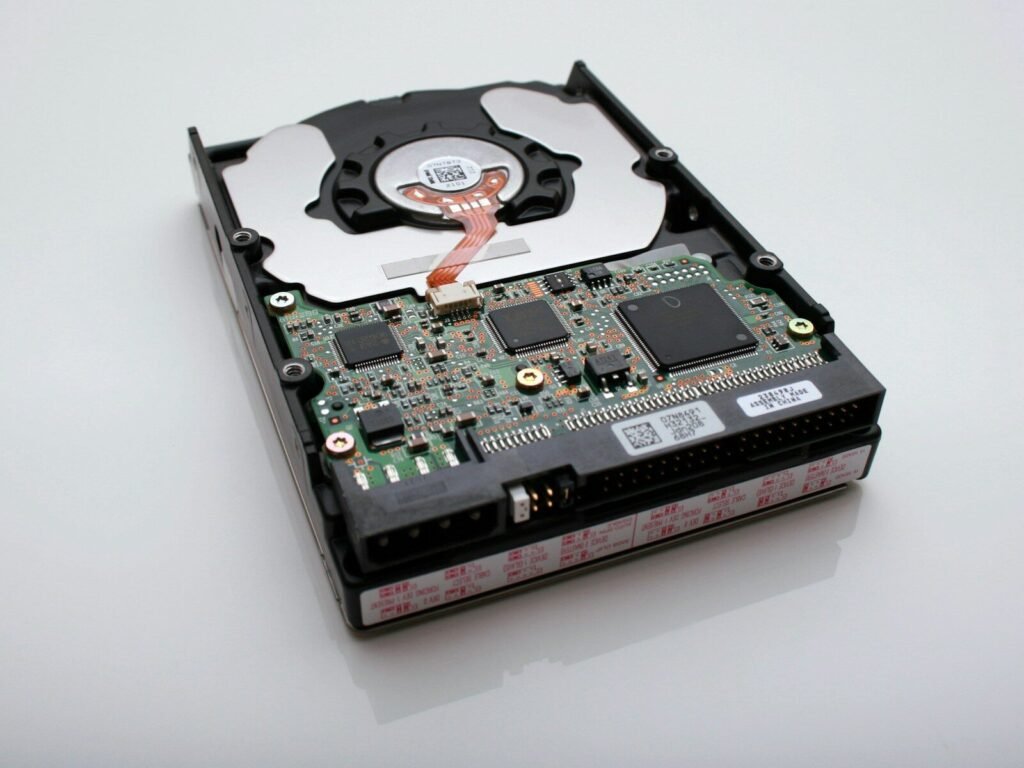
A NAS drive is a hard drive built specifically to operate continuously — 24 hours a day, 7 days a week — inside a multi-drive enclosure that connects to your network rather than directly to a single computer. That last part matters. Unlike an external USB drive sitting on your desk serving one machine, a NAS makes its storage available to every device on your network simultaneously: laptops, phones, tablets, smart TVs, and streaming sticks can all pull from it at the same time.
The “NAS” part of the name refers both to the drive itself and to the enclosure it lives in. The enclosure — made by companies like Synology, QNAP, UGREEN, or Asustor — is essentially a small computer running its own operating system. The NAS drives you slot into it do the actual storing. Together, the system behaves like a private cloud you own outright.
What makes a NAS drive different from any 3.5-inch desktop hard drive isn’t primarily speed. It’s the engineering behind sustained operation. NAS drives use rotational vibration (RV) sensors to compensate for the vibrations caused by neighboring drives in the same enclosure — something a desktop drive never encounters. They use time-limited error recovery (TLER), a firmware feature that forces the drive to report an error quickly rather than spending minutes trying to self-correct, which would cause a RAID array to drop it. And they’re rated for significantly higher annual workloads than desktop drives ever are.
The Seven Core Uses for a NAS Drive
1. Centralized File Backup for Every Device in the House
This is the reason most people end up buying one. Every laptop, desktop, and phone in your home backing up to the same central storage, automatically, without thinking about it. Synology’s DiskStation Manager software includes a tool called Hyper Backup; QNAP has similar offerings. Set it up once and your machines back up continuously over Wi-Fi. The alternative — remembering to plug in an external drive — has a failure rate of essentially 100% over time.
Worth noting: a NAS is not a replacement for an offsite backup. If your house floods, your NAS and its redundancy go down together. The standard recommendation from data recovery professionals is the 3-2-1 rule: three copies of your data, on two different media types, with one stored offsite. A NAS fills two of those slots beautifully. Services like Backblaze B2 or Amazon Glacier can fill the third for a few dollars a month.
2. Personal Media Server
Run Plex, Jellyfin, or Emby on a NAS and you have a private Netflix that you own. Every film, TV show, and music library on your drives becomes available across your home network and, with a little configuration, anywhere you have an internet connection. No monthly subscription. No library changes, no content being pulled. This is where the “streaming box replaces everything” crowd keeps running into problems — they’re still dependent on what streamers decide to carry. A NAS with a curated media library isn’t.
If media serving is your main use case, CPU matters more than drive speed. The NAS enclosure needs enough processing power to transcode video on the fly for devices that can’t play a raw MKV file. A pair of well-chosen NAS drives inside a capable enclosure can handle a family’s worth of simultaneous streams without breaking a sweat. For tips on building out a smart home entertainment setup, our coverage of IR repeater kits is worth reading alongside this — they pair naturally with a NAS-based media room.
3. Photo and Video Archive
Photographers and videographers who shoot RAW files understand the storage problem intimately. A single weekend portrait session can produce 50GB before editing begins. Cloud storage at that scale gets expensive fast. A 4TB NAS drive — or a pair in RAID 1 — handles years of archives without an ongoing subscription cost, and the files are accessible from Lightroom, Capture One, or any editing software directly over the network.
4. Home Office File Sharing
Two people working from home on the same project, sharing large files over email or Dropbox, paying for a plan that limits storage — that’s a solved problem with a NAS. A shared network folder, accessible by both machines, with version history enabled, replaces a small business file server for a fraction of the cost. This is a use case that tends to justify a 4-bay setup, since you want redundancy protecting data that has actual work value.
5. Surveillance Camera Storage
NVR (Network Video Recorder) systems write to disk continuously. Desktop drives die quickly under that workload. NAS-rated drives with high workload ratings handle the constant write cycles without failure patterns that make surveillance storage notoriously hard on hardware. Seagate makes a separate SkyHawk line specifically for surveillance, but the IronWolf Pro serves the same purpose for mixed-use setups.
6. Running Home Automation and Self-Hosted Apps
This is the use case that surprises people. Modern NAS enclosures can run Docker containers — meaning you can host your own password manager (Bitwarden), your own VPN server (Tailscale or WireGuard), your own note-taking app (Obsidian), or a home automation hub (Home Assistant) all on the same box that stores your files. The drives spin for storage; the enclosure’s CPU handles the applications. For anyone who’s been reading about diagnostic tools for managing their home systems, a NAS running Home Assistant integrates with a surprisingly broad set of smart home sensors and devices.
7. Small Business Storage Without Monthly Cloud Fees
A 4-bay NAS with four 8TB drives gives you 24TB of usable storage in RAID 5 — enough for most small businesses — for a one-time hardware cost. Compare that to Dropbox Business or SharePoint at $12–$25 per user per month, every month. The NAS requires more initial effort to configure, but businesses with 5–20 users and large file assets frequently find the math points strongly toward owning the hardware.
CMR vs SMR: The Most Important Thing Nobody Explains Clearly
There are two methods for writing data to a modern spinning hard drive. CMR — Conventional Magnetic Recording — writes each track in its own dedicated lane, like paint stripes on a highway. SMR — Shingled Magnetic Recording — overlaps tracks like roof shingles, fitting more data onto the same platter surface but requiring the drive to rewrite adjacent tracks whenever it modifies existing data. For a desktop drive doing occasional reads and writes, the SMR performance hit is largely invisible. In a NAS doing sustained writes, RAID rebuilds, or handling multiple simultaneous users, SMR creates a bottleneck that ranges from noticeable to catastrophic.
Western Digital faced significant backlash a few years ago for shipping SMR drives in NAS-labeled packaging without clear disclosure. That’s been corrected — the WD Red Plus line is now explicitly CMR — but it’s a reminder to check. If a drive’s product listing doesn’t explicitly say CMR, verify the model number against the manufacturer’s spec sheet before buying. Every drive in this article uses CMR.
Understanding NAS Drive Specifications
Workload Rating
The workload rating tells you how many terabytes of data the manufacturer expects the drive to read and write in a year without adverse effects on reliability or warranty coverage. Consumer NAS drives like the IronWolf standard line and WD Red Plus both sit at 180TB/year. That sounds like a lot — and for most home users, it is. A family backing up several laptops and streaming media will typically land well under that number.
Where it matters is in business environments or any setup running continuous tasks. Surveillance recording, for instance, can write several terabytes per week on a busy system. A 10-camera setup generating 2TB of footage per week hits 104TB annually — comfortably within the 180TB rating. Double that camera count and you should be looking at IronWolf Pro or WD Red Pro, which carry 300TB/year ratings.
MTBF and What It Actually Means
Mean Time Between Failures — typically shown at 1 million hours — is a statistical measure derived from accelerated testing across large populations of drives, not a promise that any individual drive will last 114 years. What it tells you is relative reliability within a product class. NAS drives with 1M-hour MTBF ratings fail less frequently, statistically, than desktop drives with lower MTBF figures. It doesn’t mean they won’t fail. RAID exists precisely because individual drives fail regardless of their ratings.
Cache Size
Cache — measured in megabytes — is the drive’s onboard buffer for managing read and write requests. Larger cache (256MB vs 64MB) generally improves performance under concurrent access loads, which matters more in multi-user business setups than in a single-family home. For a 2-bay home NAS used primarily for backup and media streaming, the cache size difference between a 64MB and 256MB drive is unlikely to be perceptible day-to-day. If you’re configuring a production environment where multiple users are hitting the same directories simultaneously, prioritize higher cache alongside a higher-end enclosure CPU.
RAID Basics: What It Does and What It Doesn’t Do
RAID stands for Redundant Array of Independent Disks. In a home NAS, the relevant configurations are RAID 1 (two drives mirroring each other — lose one, keep all your data) and RAID 5 (three or more drives with distributed parity — lose any one drive, rebuild from the others). Neither is a backup. Both protect against drive failure. Neither protects against accidental deletion, ransomware, or theft of the physical device. Treat RAID as the first layer of a protection strategy, not the whole strategy.
For home users: start with RAID 1. Two 4TB drives in mirror means 4TB of usable, redundant storage for a modest investment. When you hit the capacity ceiling, evaluate whether expanding the enclosure or moving to RAID 5 makes more sense for your workflow. If power outages are a concern in your area — relevant for anyone running a NAS in a region with unreliable power, or working with equipment that matters — an uninterruptible power supply is worth adding to the setup. Our guide to power inverters and backup power options covers some of the relevant considerations for keeping hardware protected during outages.
Recommended NAS Drives
Seagate IronWolf 4TB — The Reliable Starting Point for Home NAS
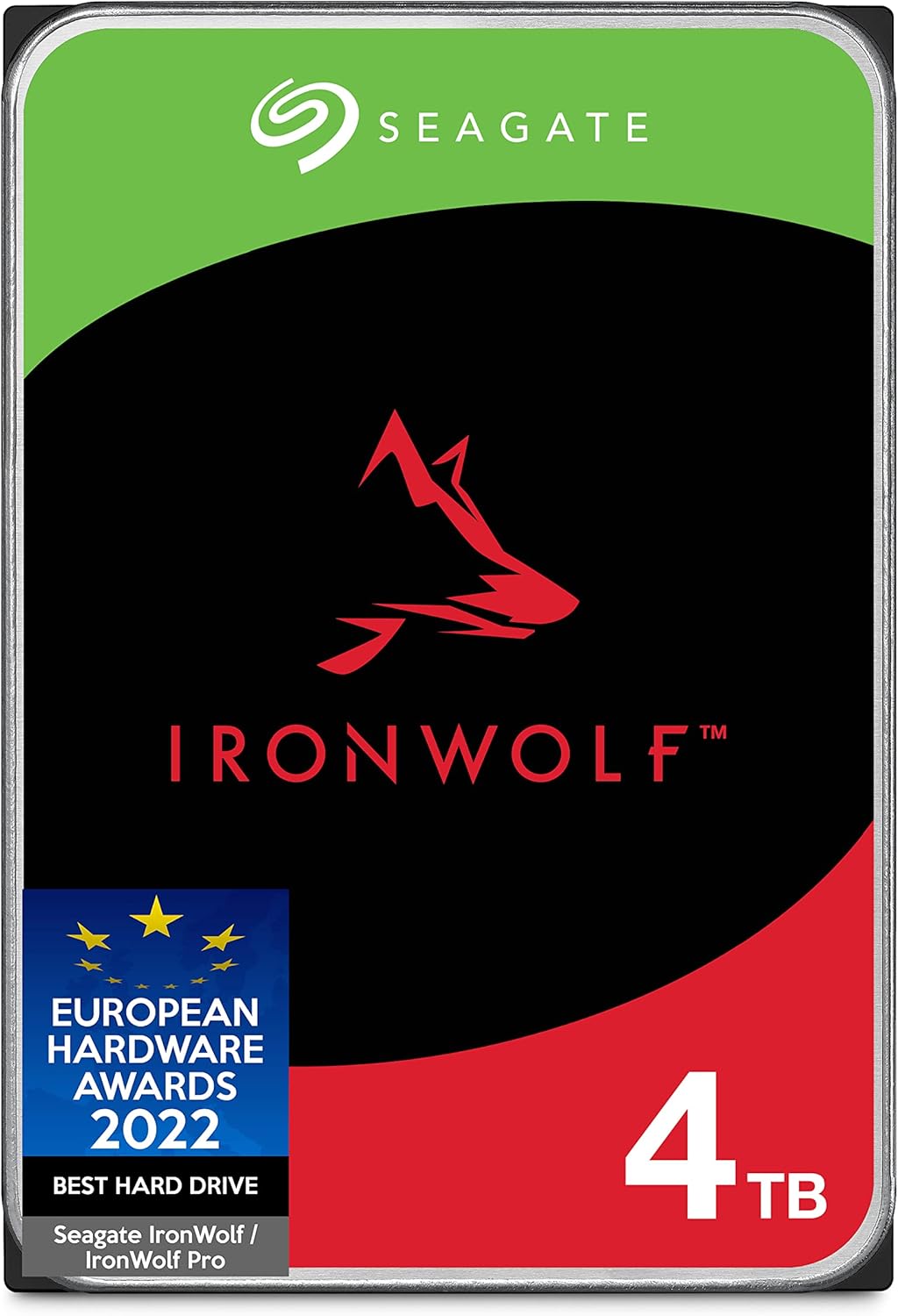
The IronWolf 4TB is a 3.5-inch SATA drive running at 5900 RPM with a 64MB cache and a 180TB/year workload rating. It uses CMR recording — no exceptions, no fine print. The onboard AgileArray firmware manages vibration compensation and dual-plane balancing to keep performance stable when multiple drives are spinning in the same enclosure, which is the exact environment it was designed for.
In a 2-bay home NAS running RAID 1, this drive does its job without drama. Backup jobs run quietly overnight. Media files stream to a Plex client on a TV without stuttering. The IronWolf Health Management system integrates with Synology’s DiskStation Manager and QNAP’s QTS to surface real-time drive health alerts — you’ll know a drive is developing problems before it becomes a data loss event rather than after.
The honest limitation: the 5900 RPM spindle speed and 64MB cache mean this drive is not the choice for a write-intensive workload. A busy small business with multiple users writing large files simultaneously will feel the constraint. It’s also worth noting that Seagate’s 8TB and larger IronWolf models upgrade to 7200 RPM and 256MB cache — if you’re budgeting for a larger drive anyway, the performance gap at the same price tier favors going bigger.
Best for: Home users setting up their first NAS, households running media servers and automatic device backups, anyone who wants a proven, well-supported NAS drive at a reasonable price per terabyte.
Western Digital Red Plus 4TB — The Dependable Alternative with Strong NASware Support

The WD Red Plus 4TB runs at 5400 RPM with 256MB of cache — notably more buffer than the entry IronWolf — and carries the same 180TB/year workload rating and CMR recording technology. Western Digital’s NASware 3.0 firmware handles vibration compensation and error recovery in ways directly comparable to Seagate’s AgileArray. Both brands have been building NAS-specific drives long enough that the product lines are genuinely mature.
Where the Red Plus earns its place is compatibility breadth. Western Digital maintains a detailed compatibility list with NAS enclosure manufacturers, and the Red Plus appears on approval lists for Synology, QNAP, Asustor, and a wide range of smaller brands. If you’re building a mixed-brand setup or expanding an existing array where compatibility verification matters, the WD ecosystem tends to be slightly easier to research. The TLER implementation is reliable — drives don’t fall out of RAID arrays during normal error events.
The trade-off is warranty confidence. Seagate bundles Rescue Data Recovery Services with the IronWolf line, which provides a real recovery option if a drive fails with data that hasn’t been fully backed up elsewhere. WD’s standard 3-year warranty is solid but doesn’t include the same recovery service tier. For users with a disciplined backup strategy, this doesn’t matter much. For users who are still building that discipline, it’s a meaningful difference.
Best for: Existing WD ecosystem users, anyone prioritizing compatibility research and documentation, home users who want more cache headroom than the base IronWolf provides at the same capacity tier.
Seagate IronWolf 8TB — The Volume Buy for Families and Media Collectors

At 8TB, the IronWolf steps up to 7200 RPM and 256MB of cache — a meaningful performance upgrade over the 4TB base model. Sustained transfer rates hit 180MB/s, which is relevant when you’re moving large video files, doing RAID rebuilds, or running several simultaneous backup jobs. This is still a consumer NAS drive in terms of workload rating (180TB/year), but its construction quality and included 5-year warranty with Rescue Data Recovery Services put it closer to the Pro line in practical terms.
Two of these in a 2-bay NAS gives you 8TB of RAID 1 protected storage — enough for a family with multiple laptops, a growing photo library, and a modest Plex media server — without filling up the enclosure before you’ve gotten comfortable with the system. Four of them in a 4-bay NAS configured for RAID 5 yields 24TB of usable space. At current price-per-terabyte ratios, the 8TB IronWolf consistently hits the sweet spot between capacity and cost.
One limitation worth naming directly: 8TB spinning drives draw more power and generate more heat than 4TB drives in the same enclosure. In a 4-bay setup running four of them, ensure your NAS enclosure has adequate cooling and that the power supply is rated for the combined load. Most modern enclosures handle this without issue, but it’s worth checking the manufacturer’s power specs before buying a full set.
Best for: Families who want set-it-and-forget-it storage at meaningful capacity, Plex or Jellyfin users building a home media library, anyone who knows their data will grow and wants to avoid premature drive swaps.
What to Look for When Buying a NAS Enclosure
The drives are only half the equation. The enclosure — the box the drives live in — determines ease of use, available features, and how the system scales over time. A few things matter more than the spec sheet suggests.
Processor and RAM in the enclosure set the ceiling on what software you can run. A basic ARM-based 2-bay unit is fine for file sharing and backups. Running Plex with hardware transcoding, Docker containers, and surveillance storage simultaneously requires an Intel or AMD-based enclosure with expandable RAM — typically 4GB minimum, 8GB or more if you’re ambitious. The enclosure CPU doesn’t affect drive reliability, but it determines whether the system feels sluggish or responsive.
Network interface speed is the second factor people overlook. Most consumer NAS units ship with 1 Gigabit Ethernet. For basic file sharing, that’s 125MB/s theoretical maximum — fine for most home use. If you’re regularly transferring large video files or have a 2.5GbE or 10GbE switch, look for enclosures with matching ports. Some newer mid-range units from UGREEN and Synology now ship with 2.5GbE as standard.
NAS vs External Hard Drive: The Actual Comparison
An external USB drive costs less upfront and requires no configuration. It also serves one computer, one room, requires manual connection, and has zero redundancy. The moment you care enough about data to plug in a backup drive, you’ve already decided the data matters — and that decision deserves a solution that doesn’t require remembering to do it manually. A NAS automates the protection and extends it to every device at once.
External drives still make sense for specific use cases: long-term cold storage of archived data, physical transport of large files, or keeping a copy of critical data at a different location. For anyone wanting to dig into organization solutions beyond just drives, our piece on stackable storage organization covers the physical side of keeping a home office or workspace orderly — useful context if you’re setting up a proper home server area.
Security Considerations for Home NAS Users
A NAS connected to your home network is, by default, accessible to everything else on that network. Most home users leave the enclosure’s firewall and admin password at factory settings, which is a vulnerability. Before anything else: change the default admin password, enable two-factor authentication if the NAS software supports it, and disable any remote access features you don’t actively use.
If you enable remote access — which lets you reach your NAS files from outside your home network — do it through a VPN or the enclosure manufacturer’s encrypted relay service, not by opening ports directly. Synology’s QuickConnect and QNAP’s myQNAPcloud both provide reasonably secure relay options for non-technical users. Direct port forwarding to a home NAS has resulted in ransomware attacks targeting known NAS vulnerabilities, and the NAS community forums have documented several high-profile incidents.
“Consumers should be aware that network-connected devices, including NAS devices, can be targeted by cybercriminals. Changing default passwords, keeping firmware updated, and disabling unnecessary services significantly reduces exposure.” — Cybersecurity and Infrastructure Security Agency (CISA), security advisory guidance for home network devices.
Firmware updates matter more for NAS enclosures than for most devices. Manufacturers patch actively exploited vulnerabilities, and skipping updates on a device that stores years of irreplaceable data is an unnecessary gamble. Most modern enclosures support automatic security update installation — enable it.
How NAS Drives Relate to Other Home Technology Investments
A NAS doesn’t exist in isolation. It works best as part of a broader home technology setup. A good network — gigabit switches, reliable router placement — determines how fast files move between devices. If you’ve invested in a quality setup for your garage or workspace and are already thinking about testing and monitoring equipment, the overlap with NAS management isn’t as distant as it sounds. Anyone familiar with our coverage of digital multimeters for home diagnostics will recognize the same general principle: having the right tool that you can trust to give accurate information on demand, rather than guessing.
A NAS paired with a battery backup (UPS) protects against data corruption from sudden power loss. An unplanned shutdown during a write operation can corrupt the NAS filesystem — not destroy data necessarily, but require a rebuild that creates unnecessary downtime. Small UPS units from APC or CyberPower designed for home network equipment cost under $100 and are one of the more consistently overlooked accessories for anyone setting up a home server.
Our Verdict
Here’s the thing most “best NAS drives” lists won’t say plainly: for the majority of home users, the difference between the Seagate IronWolf and the WD Red Plus is negligible in daily use. Both are CMR, both carry 180TB/year workload ratings, both are genuinely designed for the application. The decision usually comes down to price at the moment of purchase and whichever brand you’ve had better personal experience with. Agonizing over the two for weeks is time better spent actually setting up the system.
What actually matters more than brand: drive capacity relative to your real data volume (buy 2–3x what you think you need today), the quality of the NAS enclosure software (Synology’s DSM is the most polished consumer option; QNAP offers more flexibility for power users), and whether your backup strategy covers the scenarios that RAID cannot — accidental deletion, ransomware, fire, theft. A drive rated for 180TB/year and running at 12TB/year will last longer than spec. One that exceeds its workload ceiling routinely will not.
The NIST Cybersecurity Framework recommends that organizations — and by extension, home users serious about data — implement redundancy, backup, and recovery planning as core practices rather than afterthoughts. A NAS addresses the redundancy layer well. It does not replace a disciplined backup habit. Use them together.
For most households starting out: two Seagate IronWolf 4TB drives in a Synology 2-bay enclosure, RAID 1, with automatic backup jobs for every computer in the house, and a $5/month cloud backup for the truly irreplaceable files. That setup will protect your data more reliably than anything else at its price point — and it requires almost no ongoing management once it’s configured. Scale the drive size up to 8TB if your household generates significant media, or if you want breathing room for the next several years without thinking about it again.
A Closer Look: Drive Performance at Different NAS Workloads
| Use Case | Estimated Annual Workload | Recommended Drive Tier | RAID Configuration | Min. Bays |
|---|---|---|---|---|
| Home backup (2–3 devices) | ~10–30 TB/yr | IronWolf / WD Red Plus | RAID 1 | 2 |
| Media server + family backup | ~30–80 TB/yr | IronWolf 8TB+ | RAID 1 or RAID 5 | 2–4 |
| Home office file server (5+ users) | ~80–150 TB/yr | IronWolf Pro | RAID 5 or RAID 6 | 4 |
| Surveillance (4–8 cameras) | ~100–200 TB/yr | IronWolf Pro or SkyHawk | RAID 5 or JBOD | 4 |
| Small business (10–20 users) | ~200–300+ TB/yr | IronWolf Pro / WD Red Pro | RAID 6 or 10 | 4–8 |
For small business owners thinking about infrastructure investments more broadly, a NAS can replace or supplement dedicated file servers that carry much higher licensing and maintenance costs. Our coverage of testing and diagnostic tools for small business environments touches on a similar theme — investing in reliable equipment once versus recurring service costs over time.
Frequently Asked Questions about What Is a NAS Drive Used For
What is a NAS drive used for?
A NAS drive is used to store, share, and access files across a home or office network without relying on cloud subscriptions. Common uses include media streaming, automatic computer backups, photo archiving, file sharing between family members or coworkers, and running personal cloud services like Plex or Nextcloud. The drive itself sits inside a NAS enclosure connected to your router, making it accessible to every device on the network simultaneously.
What is the difference between a NAS drive and a regular hard drive?
A NAS drive is specifically engineered for 24/7 operation in multi-drive enclosures, while a regular desktop hard drive is designed for intermittent use in a single computer. NAS drives include rotational vibration (RV) sensors, time-limited error recovery (TLER) firmware, and higher annual workload tolerances that desktop drives simply lack. Using a desktop drive in a NAS enclosure works temporarily but typically shortens drive lifespan and increases the risk of dropping out of a RAID array unexpectedly.
Can I use a desktop hard drive in a NAS?
Technically yes, but it is not recommended. Desktop drives are not rated for continuous operation and lack TLER, which means a NAS RAID controller may drop the drive from an array during a long error recovery cycle. They also tend to run warmer and louder under sustained NAS workloads. For any data you care about, the few extra dollars per terabyte for a proper NAS-rated drive is money well spent. The risk is not theoretical — forum discussions around failed array rebuilds are filled with desktop drives as the culprit.
What is CMR vs SMR in NAS drives?
CMR (Conventional Magnetic Recording) writes data in non-overlapping tracks, making it faster and more reliable for continuous NAS workloads. SMR (Shingled Magnetic Recording) overlaps tracks to increase density but suffers from slower write speeds under sustained load — a serious problem in RAID arrays where drives must rewrite adjacent data during normal operations. Always choose CMR for NAS use. All three drives reviewed in this article are CMR; confirm this on any drive you’re considering by checking the manufacturer’s spec sheet, not just the product title.
How many bays do I need in a NAS for home use?
A 2-bay NAS is sufficient for most home users — it allows a RAID 1 mirror for redundancy with a straightforward configuration. Step up to 4 bays if you want RAID 5 (which tolerates one drive failure while preserving more usable space as a percentage of total capacity), or if you anticipate adding storage incrementally over time. A 4-bay unit also gives you room to start with two drives in RAID 1 and expand later without buying new hardware — a useful flexibility advantage if you’re uncertain how much storage you’ll need long-term.
Is a NAS the same as a cloud backup?
No. A NAS is local storage you own and control, while cloud backup stores your data on a third-party server accessed via the internet. A NAS delivers much faster local access speeds and carries no recurring fees, but it shares your physical location — a house fire or flood could destroy both your primary data and your NAS backup simultaneously. Best practice is a combination: NAS for fast, always-available local access and automatic on-site backup, plus one offsite or cloud backup for the scenarios that on-site redundancy cannot address.
What is the workload rating on a NAS drive?
The workload rating measures how many terabytes of data a drive is designed to read and write per year under normal operating conditions. A standard NAS drive like the Seagate IronWolf or WD Red Plus is rated at 180TB/year; the IronWolf Pro runs at 300TB/year. Most home users — with a few computers backing up automatically and regular media streaming — generate well under 50TB of annual drive activity, leaving substantial headroom. Businesses with surveillance cameras, multiple simultaneous users, or high-volume file operations should calculate their expected annual workload before choosing between standard and Pro-tier drives.